
How to Set Up an iPhone or iPad for a Child
0
Add paragraph text. Click “Edit Text” to update the font, size and more. To change and reuse text themes, go to Site Styles.
Set Up Family Sharing (Create Your Child’s Apple ID)
Family Sharing is the foundation for all parental controls. It links your child’s Apple ID to yours so you can manage settings remotely.
Steps:
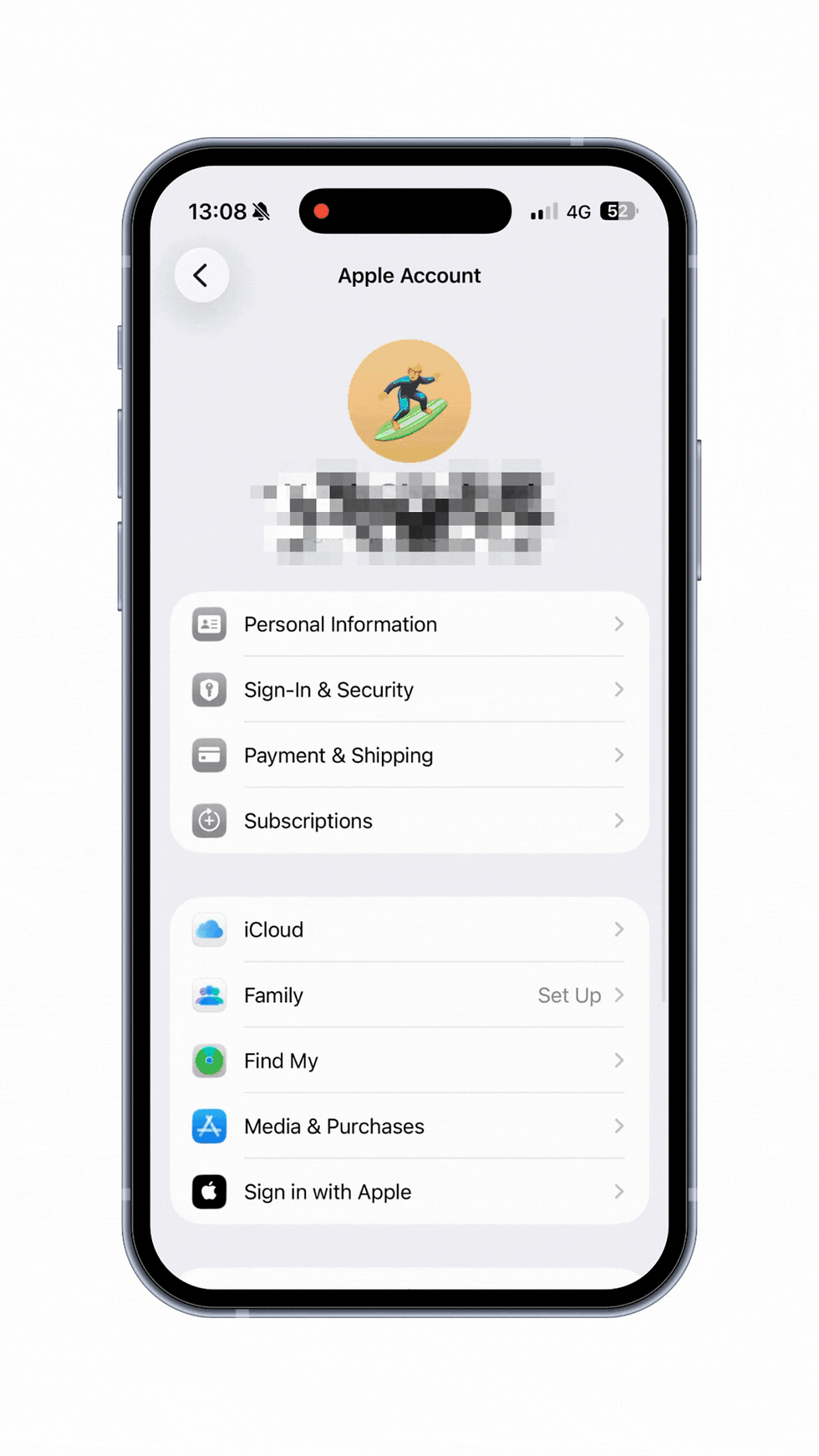
On your device, go to Settings → [your name] → Family Sharing
Tap Add Family Member → Create Child Account
Follow the prompts to:
Enter your child’s name and date of birth
Create their Apple ID
Confirm parental consent using your Apple ID password
Once complete, you can manage Screen Time, app downloads, permissions and location in the following steps from your own device.
Mark as done
1
Add paragraph text. Click “Edit Text” to update the font, size and more. To change and reuse text themes, go to Site Styles.
Parental Controls Introduction (Onboarding)
When you first enable Screen Time (or during device setup), Apple shows a Parental Controls introduction screen.
This activates Apple’s full child-protection system, including:
Content filters
App and media age ratings
Communication Safety
Privacy protections
Tap Continue to begin configuring protections for your child.
Mark as done

2
Add paragraph text. Click “Edit Text” to update the font, size and more. To change and reuse text themes, go to Site Styles.
Set Content Restrictions (Age-Appropriate Defaults)
Choose your child’s age to apply Apple’s recommended restrictions automatically.
This sets controls for:
App age ratings (e.g. 9+, 12+)
Web content filtering
Films, TV, music and books
Game Center features
You can adjust these later at:
Settings → Family → [Child’s Name] → Screen Time → Content & Privacy Restrictions → Content Restrictions
Mark as done

3
Add paragraph text. Click “Edit Text” to update the font, size and more. To change and reuse text themes, go to Site Styles.
Turn On Communication Safety
Communication Safety helps protect children from receiving or sending explicit images in Messages.
It:
Blurs sensitive images
Explains why they may be unsafe
Encourages children to seek help from a trusted adult
You can adjust this later at:
Settings → Family → [Child’s Name] → Screen Time → Communication Safety
All detection happens on the device — Apple cannot see message content.
Mark as done

4
Add paragraph text. Click “Edit Text” to update the font, size and more. To change and reuse text themes, go to Site Styles.
Set Communication Limits (Who Your Child Can Contact)
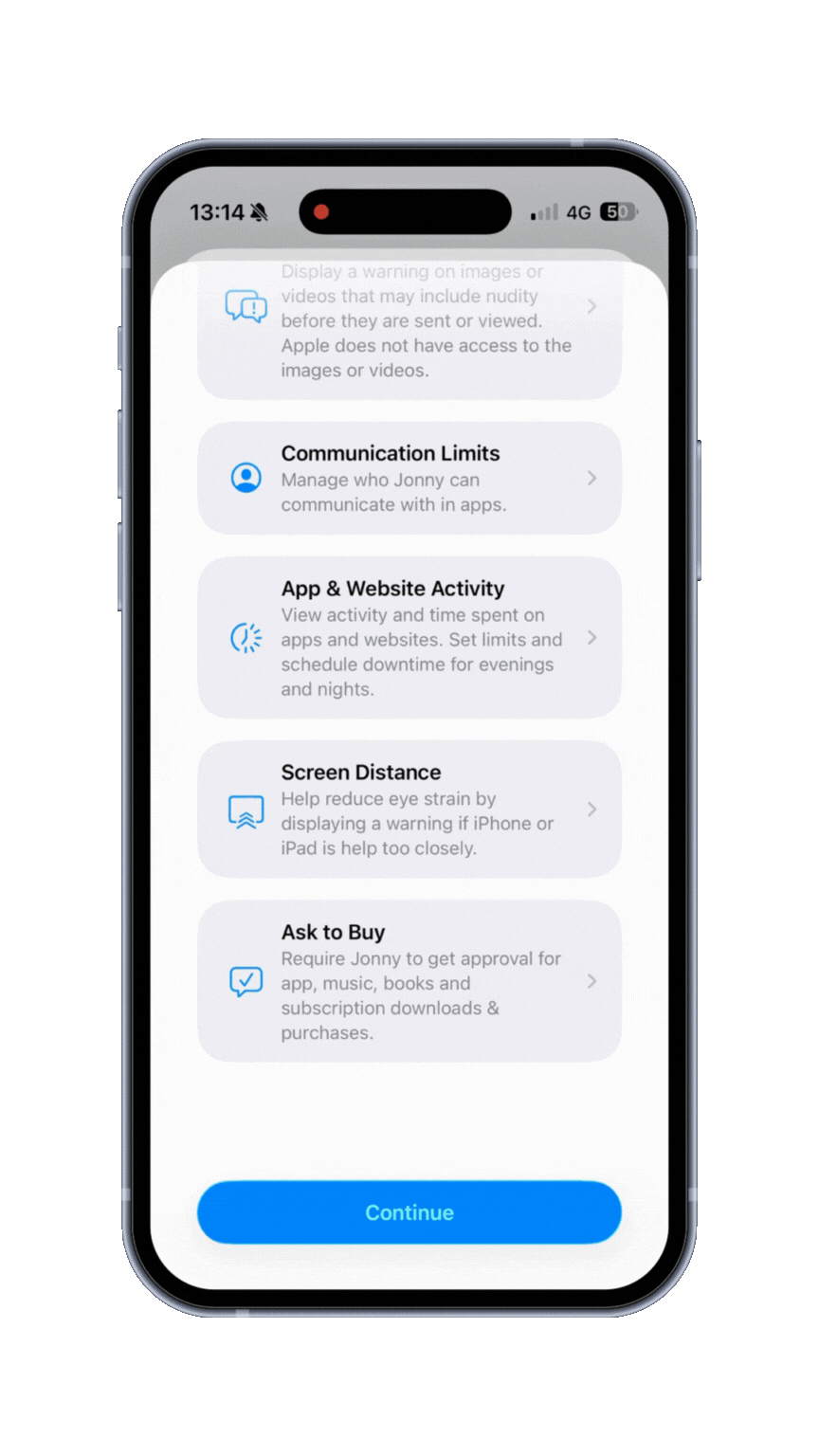
Control who your child can call, message or FaceTime.
You can set:
During Screen Time: Contacts Only
During Downtime: Family Only
Contact Approval: Require approval before new contacts are added
This prevents contact with unknown people.
You can adjust these later at:
Settings → Family → [Child’s Name] → Screen Time → Communication Limits
Mark as done

5
Add paragraph text. Click “Edit Text” to update the font, size and more. To change and reuse text themes, go to Site Styles.
Review Screen Time Overview (Your Control Hub)
The Screen Time overview is where everything connects.
From here you can manage:
App Limits
Set daily limits by category (Games, Entertainment, Social)
Set limits for specific apps (e.g. YouTube or Roblox)
Choose a small list of apps available at all times (e.g. Messages with family, Calculator, learning apps).
You can adjust these later at:
Settings → Family → [Child’s Name] → Screen Time → App Limits
Downtime helps create healthy routines for sleep and school.
Set start and end times
Only approved apps and contacts will work
You can adjust these later at:
Settings → Family → [Child’s Name] → Screen Time → Always Allowed
Mark as done

6
Add paragraph text. Click “Edit Text” to update the font, size and more. To change and reuse text themes, go to Site Styles.
Enable Screen Distance (Protect Eyes & Posture)
Screen Distance uses the TrueDepth camera to warn if the device is held too close.
You can adjust this later at:
Settings → Family → [Child’s Name] → Screen Time → Screen Distance
Mark as done
7
Add paragraph text. Click “Edit Text” to update the font, size and more. To change and reuse text themes, go to Site Styles.
Enable “Ask to Buy” (App Download Approval)
This ensures you approve every app download and in-app purchase.
Approval requests are sent directly to your device.
You can adjust this later at:
Settings → Family → [Child’s Name] → Ask to Buy
Mark as done

8
Add paragraph text. Click “Edit Text” to update the font, size and more. To change and reuse text themes, go to Site Styles.
Lock Parental Controls (Screen Time Passcode)
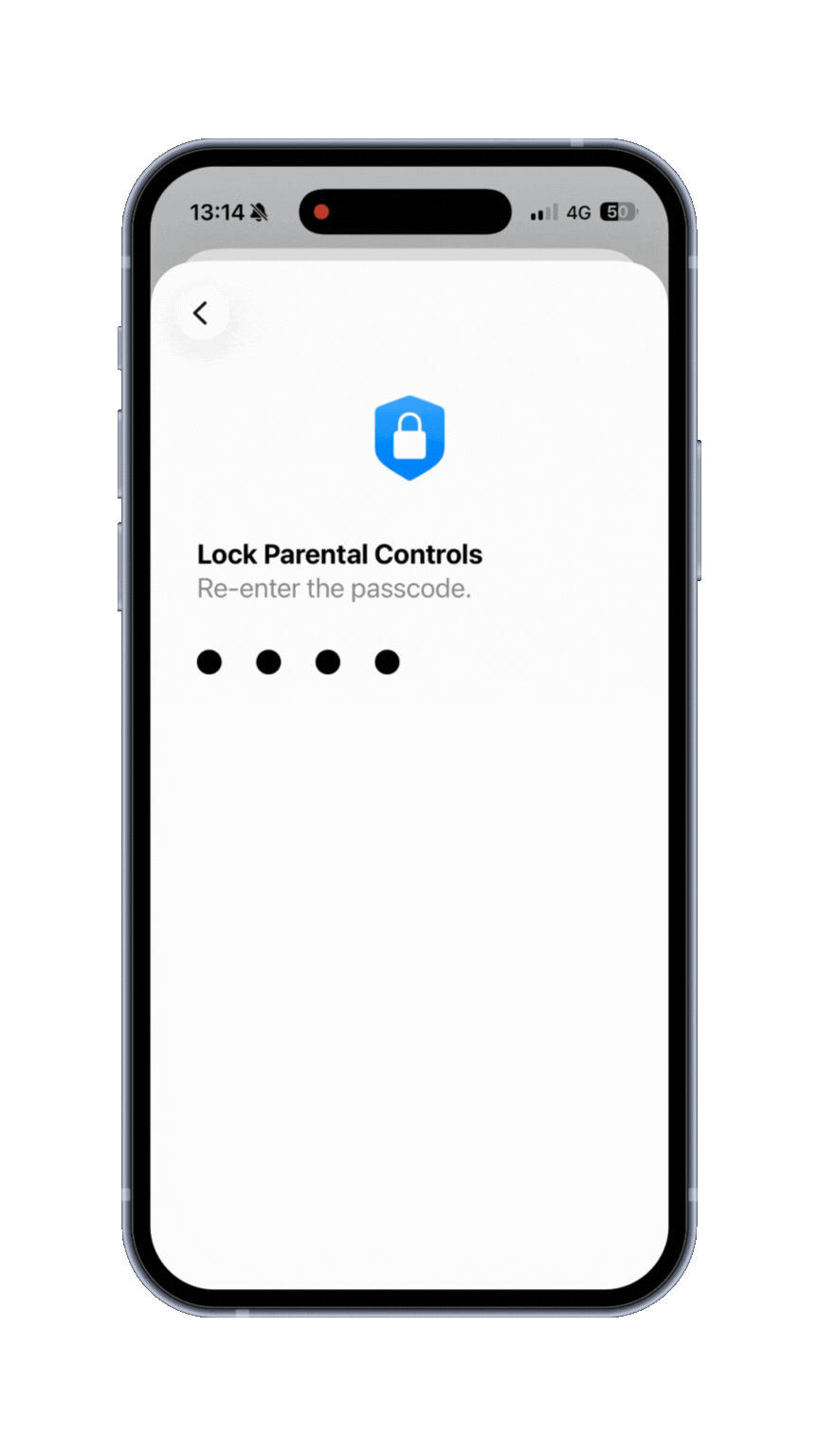
This is essential. Without it, children can change restrictions.
Choose a passcode different from the device unlock code.
If forgotten, recover using your Apple ID.
You can adjust this later at:
Settings → Family → [Child’s Name] → Screen Time → Use Screen Time Passcode
Mark as done

9
Add paragraph text. Click “Edit Text” to update the font, size and more. To change and reuse text themes, go to Site Styles.
Share Location Safely with Family
Location sharing helps keep children safe and find lost devices.
Only family members can see the location.
You can adjust this later at:
Settings → Family → [Child’s Name] → Share My Location
Also ensure:
Settings → Privacy & Security → Location Services → Find My → On
Mark as done
10
Add paragraph text. Click “Edit Text” to update the font, size and more. To change and reuse text themes, go to Site Styles.
Additional Recommended Settings (Optional)
AirDrop & Nearby Sharing
Reduce unwanted contact in public places.
You can adjust this later at:
Settings → Family → [Child’s Name] → General → AirDrop
Allowed Apps
Hide or disable specific built-in apps.
You can adjust this later at:
Settings → Family → [Child’s Name] → Screen Time → Content & Privacy Restrictions → Allowed Apps
App Privacy Report
See which apps access camera, mic, or location.
You can adjust this later at:
Settings → Privacy & Security → App Privacy Report
Software Updates
Keep security protections current.
You can adjust this later at:
Settings → General → Software Update → Automatic Updates
Mark as done
11
Add paragraph text. Click “Edit Text” to update the font, size and more. To change and reuse text themes, go to Site Styles.
If Required: Set Up a New or Reset Device for Your Child
If your child’s device is new or has been reset, Apple will guide you through child setup automatically.
How it works:
Turn on the child’s device
Choose Set Up for a Child
When prompted, bring your own device nearby
Sign in with your child’s Apple ID (from Family Sharing)
Apple will automatically apply your Screen Time, restrictions and protections during setup.
Mark as done
