
How to Set Up an Android Phone or Tablet for a Child
0
Family Link gives parents control and visibility over their child’s device and Google Account.
Steps:
On your phone, install and open Google Family Link (Parent).
Tap Create or Add Child.
Follow the prompts to create a supervised Google Account for your child or link an existing one.
On the child’s device, sign in with that account and follow on-screen steps.
Approve the link from your parent device.
You can now manage:
Screen time limits
App downloads and permissions
Location sharing
Web and search filters
Set Up Family Link (Essential)
Family Link gives parents control and visibility over their child’s device and Google Account.
Steps:
On your phone, install and open Google Family Link (Parent).
Tap Create or Add Child.
Follow the prompts to create a supervised Google Account for your child or link an existing one.
On the child’s device, sign in with that account and follow on-screen steps.
Approve the link from your parent device.
You can now manage:
Screen time limits
App downloads and permissions
Location sharing
Web and search filters
Mark as done
1
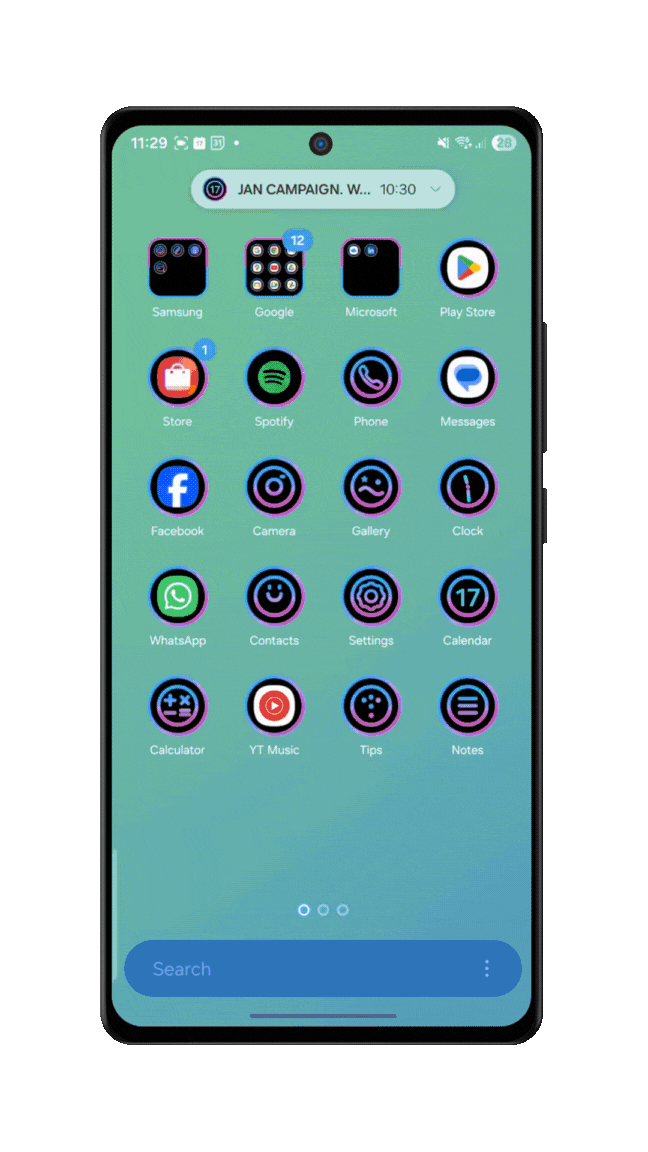
You must link the child’s device to your account before you can control screen time.
On the Child’s Device:
Open Settings.
Tap Parental Controls.
Tap Set up parental controls at the bottom.
Tap Get started → Select Child or teen.
Sign in with your child’s Google Account (or create one).
Follow the prompts to sign in with your (parent) account to authorize supervision.
On Your Device (Family Link App):
Open Family Link.
The child’s profile will appear. Tap their name to access the dashboard.
You will now see the three main tabs at the bottom: Screen time, Controls, and Location.
Crucial step to stop tech-savvy kids from disabling controls via USB.
Steps:
On Child's Device: Go to Settings → System → Developer options. (If you cannot find this menu, they have not activated it—this is good).
In Family Link: Tap Controls → Content restrictions → Google Chrome.
Scroll down and ensure Developer options or "Unknown sources" are restricted.
To prevent them from creating a new "User" to bypass you: In Family Link, tap Controls → Devices → Select device → Turn off "Add/Remove user". 📸 [Screenshot – Device restrictions]
Set Up Supervision & Add Device
You must link the child’s device to your account before you can control screen time.
On the Child’s Device:
Open Settings.
Tap Parental Controls.
Tap Set up parental controls at the bottom.
Tap Get started → Select Child or teen.
Sign in with your child’s Google Account (or create one).
Follow the prompts to sign in with your (parent) account to authorize supervision.
On Your Device (Family Link App):
Open Family Link.
The child’s profile will appear. Tap their name to access the dashboard.
You will now see the three main tabs at the bottom: Screen time, Controls, and Location.
Crucial step to stop tech-savvy kids from disabling controls via USB.
Steps:
On Child's Device: Go to Settings → System → Developer options. (If you cannot find this menu, they have not activated it—this is good).
In Family Link: Tap Controls → Content restrictions → Google Chrome.
Scroll down and ensure Developer options or "Unknown sources" are restricted.
To prevent them from creating a new "User" to bypass you: In Family Link, tap Controls → Devices → Select device → Turn off "Add/Remove user". 📸 [Screenshot – Device restrictions]
Mark as done

2
Use the dedicated "Screen time" tab to set daily schedules.
Steps:
In Family Link, select your child and tap the Screen time tab (bottom left).
Daily Limit: Tap the "Daily limit" card.
Select days (e.g., Mon–Fri).
Set hours (e.g., "3 hr" or "Unlimited").
Downtime: Scroll down to the "Downtime" card.
Set the "Lock" and "Unlock" times (e.g., 9:00 PM – 7:00 AM) to prevent night use.
School Time: (If available) Use this card to lock specific apps during class hours while leaving educational apps open.
Digital Wellbeing (Bedtime Mode)
Make the phone less stimulating at night.
Steps (On Child’s Device):
Open Settings → Digital Wellbeing & parental controls.
Tap Bedtime mode.
Set it to turn on at the same time as your Family Link "Downtime."
Enable "Grayscale" (turns the screen black and white) and "Do Not Disturb" to help them wind down.
Set Screen Time & Downtime
Use the dedicated "Screen time" tab to set daily schedules.
Steps:
In Family Link, select your child and tap the Screen time tab (bottom left).
Daily Limit: Tap the "Daily limit" card.
Select days (e.g., Mon–Fri).
Set hours (e.g., "3 hr" or "Unlimited").
Downtime: Scroll down to the "Downtime" card.
Set the "Lock" and "Unlock" times (e.g., 9:00 PM – 7:00 AM) to prevent night use.
School Time: (If available) Use this card to lock specific apps during class hours while leaving educational apps open.
Digital Wellbeing (Bedtime Mode)
Make the phone less stimulating at night.
Steps (On Child’s Device):
Open Settings → Digital Wellbeing & parental controls.
Tap Bedtime mode.
Set it to turn on at the same time as your Family Link "Downtime."
Enable "Grayscale" (turns the screen black and white) and "Do Not Disturb" to help them wind down.
Mark as done

3
Control individual app usage.
Steps:
Tap the Screen time tab.
Tap App limits.
Review the list of installed apps:
To Block: Tap the app → Select Block (Stop sign icon).
To Limit: Tap the app → Select Set limit (Hourglass icon) → Enter max time (e.g., 30 mins).
Always Allow: Select Always allow for essential apps (like Calculator or Maps) so they work even during downtime.
Block or Limit Specific Apps
Control individual app usage.
Steps:
Tap the Screen time tab.
Tap App limits.
Review the list of installed apps:
To Block: Tap the app → Select Block (Stop sign icon).
To Limit: Tap the app → Select Set limit (Hourglass icon) → Enter max time (e.g., 30 mins).
Always Allow: Select Always allow for essential apps (like Calculator or Maps) so they work even during downtime.
Mark as done

4
Prevent downloading age-inappropriate apps.
Steps:
Tap the Controls tab (bottom center).
Tap Content restrictions → Google Play.
Content Restrictions: Tap Apps & Games → Choose the maximum age rating (e.g., PEGI 7 or ESRB Everyone 10+).
Purchase Approvals: Tap Purchase & download approvals → Set to "All content". (This ensures you must type your password for every new download, even free ones).
Approve Downloads & Age Ratings
Prevent downloading age-inappropriate apps.
Steps:
Tap the Controls tab (bottom center).
Tap Content restrictions → Google Play.
Content Restrictions: Tap Apps & Games → Choose the maximum age rating (e.g., PEGI 7 or ESRB Everyone 10+).
Purchase Approvals: Tap Purchase & download approvals → Set to "All content". (This ensures you must type your password for every new download, even free ones).
Mark as done
5
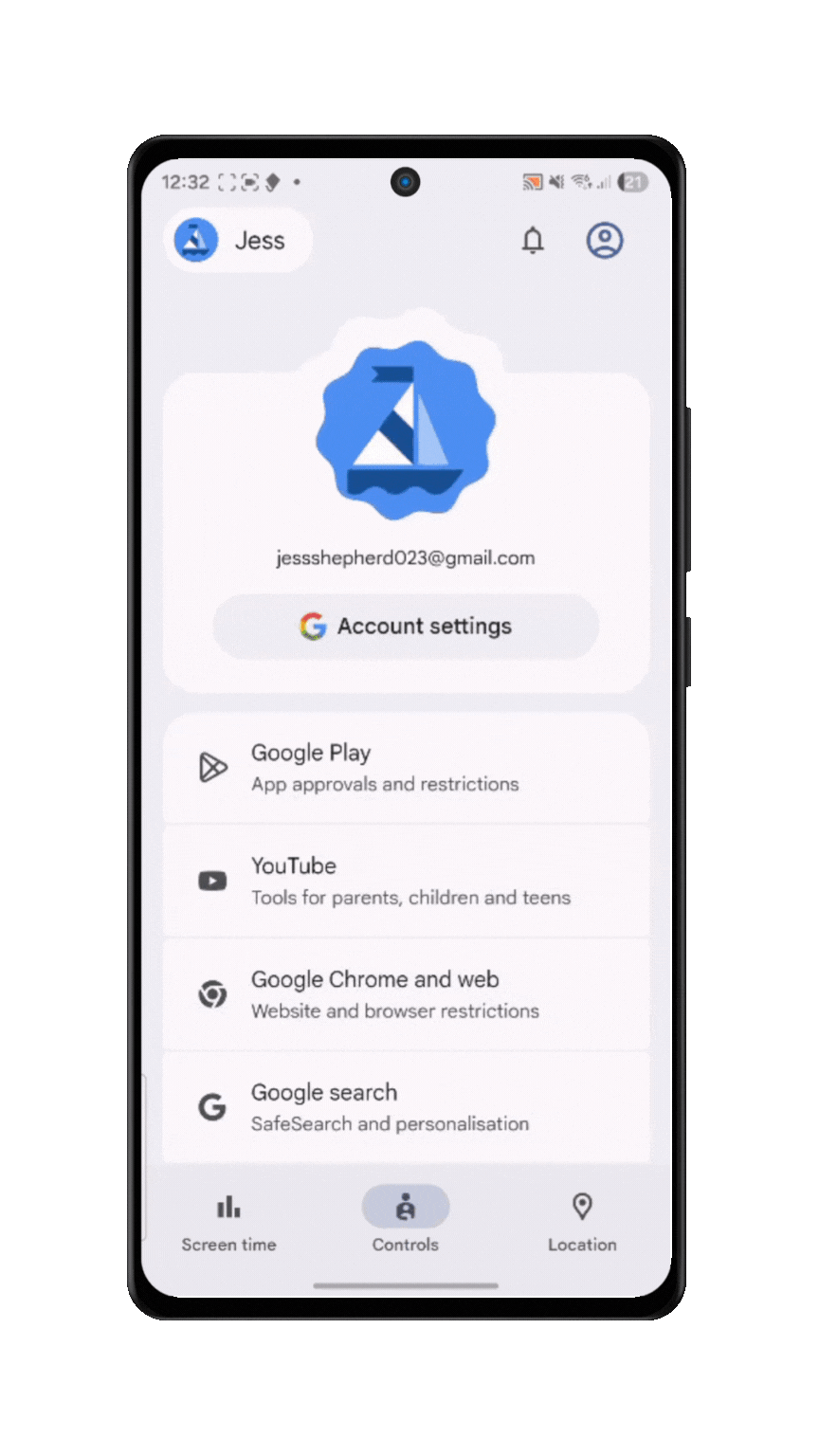
Block explicit sites and filter search results.
Steps:
Tap the Controls tab.
Tap Content restrictions → Google Chrome.
Select "Try to block explicit sites" (Standard protection) or "Only allow approved sites" (Strict protection).
Go back one step and tap Google Search → Toggle SafeSearch On.
Filter Web (Chrome) & Search
Block explicit sites and filter search results.
Steps:
Tap the Controls tab.
Tap Content restrictions → Google Chrome.
Select "Try to block explicit sites" (Standard protection) or "Only allow approved sites" (Strict protection).
Go back one step and tap Google Search → Toggle SafeSearch On.
Mark as done
%20%26%20Search_gif.gif)
6
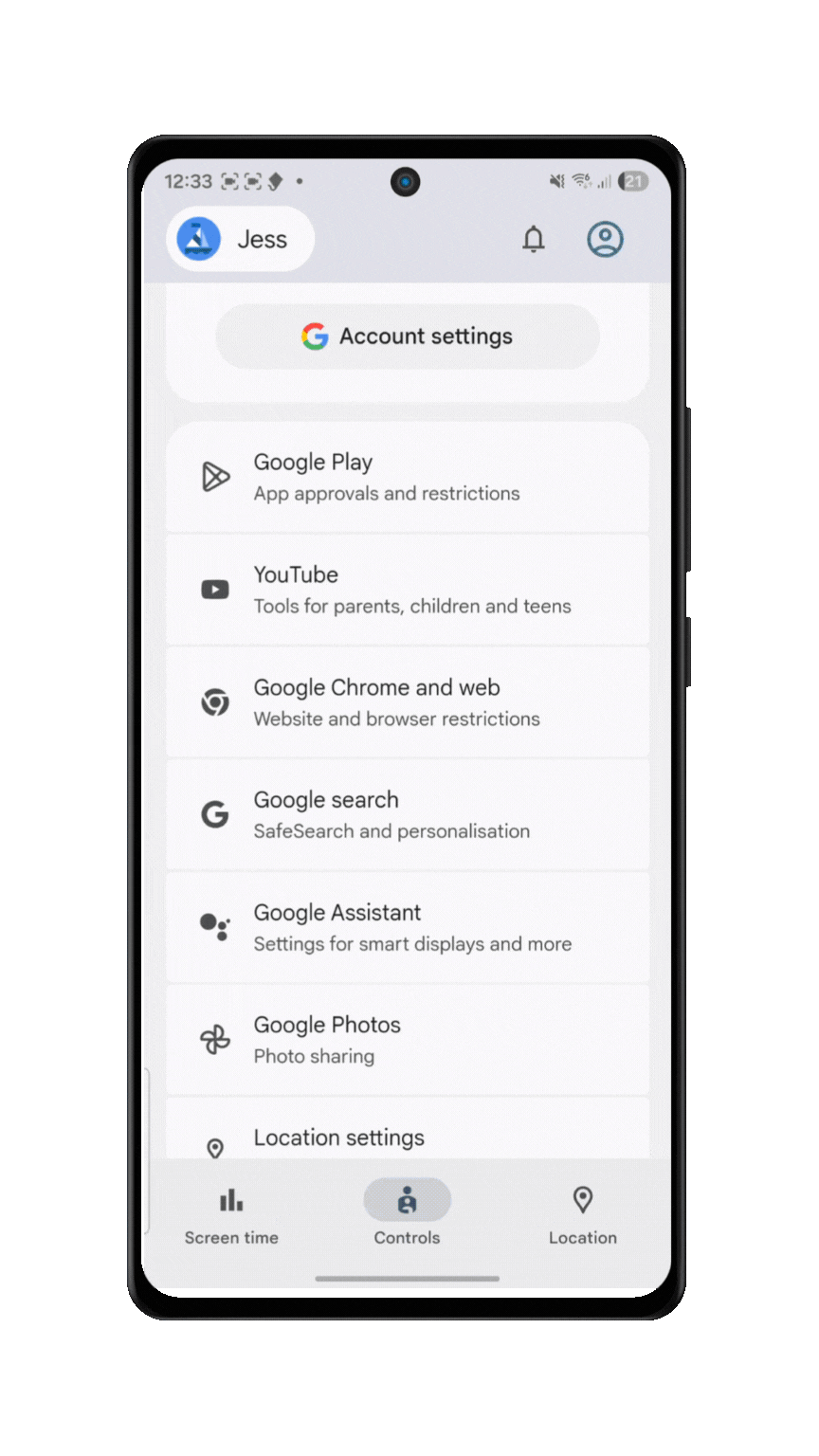
Control video content maturity.
Steps:
Tap the Controls tab.
Tap Content restrictions → YouTube.
Tap Setup (or Edit) to choose the experience level:
YouTube Kids: Best for ages under 9.
Supervised Experience: Choose Explore (9+), Explore More (13+), or Most of YouTube (Teens).
Manage YouTube
Control video content maturity.
Steps:
Tap the Controls tab.
Tap Content restrictions → YouTube.
Tap Setup (or Edit) to choose the experience level:
YouTube Kids: Best for ages under 9.
Supervised Experience: Choose Explore (9+), Explore More (13+), or Most of YouTube (Teens).
Mark as done
7
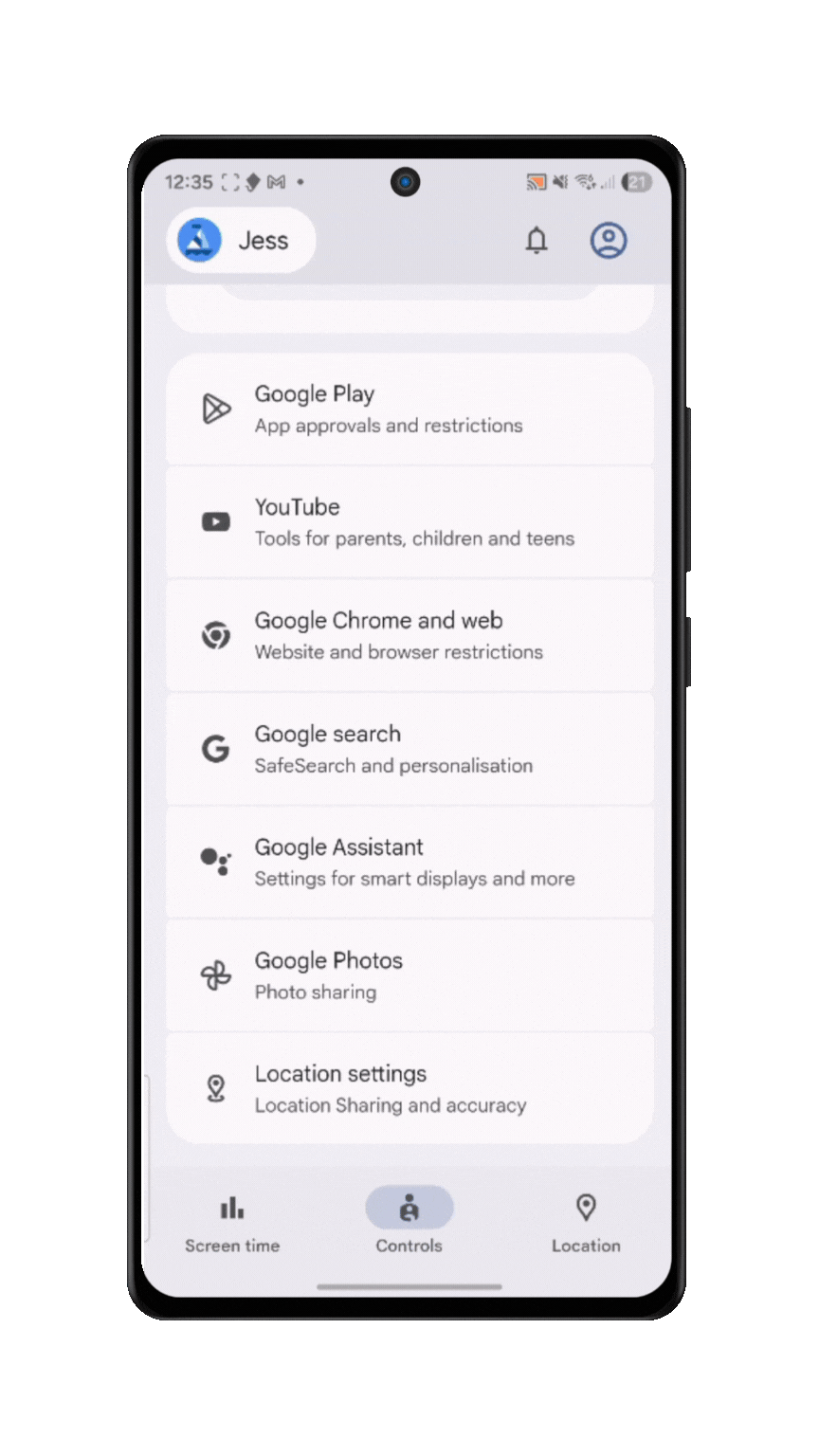
See where they are in real-time.
Steps:
Tap the Location tab (bottom right).
Tap Set up (if not already active) to turn on location sharing.
Tap the map card to see their precise location, battery percentage, and if the device is moving.
Track Location
See where they are in real-time.
Steps:
Tap the Location tab (bottom right).
Tap Set up (if not already active) to turn on location sharing.
Tap the map card to see their precise location, battery percentage, and if the device is moving.
Mark as done
8
See which apps they use the most.
Steps:
Tap the Screen time tab.
View the "Today's activity" graph at the top.
Tap View all to see a weekly or monthly breakdown of app usage.
Monitor Usage (Activity Reports)
See which apps they use the most.
Steps:
Tap the Screen time tab.
View the "Today's activity" graph at the top.
Tap View all to see a weekly or monthly breakdown of app usage.
Mark as done

9
Use this step if you are unboxing a new phone or tablet, or after a factory reset.
Steps:
Turn on the device and follow the prompts to connect to Wi-Fi.
When asked "Who is using this device?", select "For a child" (or "Set up for a child").
Note: If this screen doesn't appear, simply sign in with your child's Google Account when asked for an email.
Sign in with your child’s Google Account details.
If they don't have one yet, tap "Create account" → "For my child" and follow the prompts.
Parent Authorization: The device will ask for your (parent) Google Account email and password to verify supervision.
Samsung Account Trap (Important):
If the device asks you to sign in to a Samsung Account, it may block you because the child is under 13/14.
The Fix: Tap "Forgot password or don't have an account?" → Select "Set up later in Settings" (or "Skip").
Note: You do not need a Samsung account for Family Link or the Play Store to work.
Initial Setup: You will be guided to:
Review pre-installed apps (uncheck ones you don't want).
Turn on location tracking.
Install the "Family Link" parental control app automatically.
Once the device reaches the home screen, open the Family Link app on your own phone to customize the limits (using Steps 2–13 above).
Scan for malware and unsafe apps.
Steps (On Child’s Device):
Open the Play Store app.
Tap the Profile Icon (top right) → Play Protect.
Tap Scan and ensure "Scan apps with Play Protect" is toggled On. 📸 [Screenshot – Play Protect]
Ensure security patches are applied.
Steps (On Child’s Device):
Settings → System → Software update.
Tap Check for update.
Optional: New Device Setup (Fresh Start)
Use this step if you are unboxing a new phone or tablet, or after a factory reset.
Steps:
Turn on the device and follow the prompts to connect to Wi-Fi.
When asked "Who is using this device?", select "For a child" (or "Set up for a child").
Note: If this screen doesn't appear, simply sign in with your child's Google Account when asked for an email.
Sign in with your child’s Google Account details.
If they don't have one yet, tap "Create account" → "For my child" and follow the prompts.
Parent Authorization: The device will ask for your (parent) Google Account email and password to verify supervision.
Samsung Account Trap (Important):
If the device asks you to sign in to a Samsung Account, it may block you because the child is under 13/14.
The Fix: Tap "Forgot password or don't have an account?" → Select "Set up later in Settings" (or "Skip").
Note: You do not need a Samsung account for Family Link or the Play Store to work.
Initial Setup: You will be guided to:
Review pre-installed apps (uncheck ones you don't want).
Turn on location tracking.
Install the "Family Link" parental control app automatically.
Once the device reaches the home screen, open the Family Link app on your own phone to customize the limits (using Steps 2–13 above).
Scan for malware and unsafe apps.
Steps (On Child’s Device):
Open the Play Store app.
Tap the Profile Icon (top right) → Play Protect.
Tap Scan and ensure "Scan apps with Play Protect" is toggled On. 📸 [Screenshot – Play Protect]
Ensure security patches are applied.
Steps (On Child’s Device):
Settings → System → Software update.
Tap Check for update.
Mark as done
.png)